
A customer joins your quarterly subscription in April. You want their next renewal on July 1, alongside everyone else. Setting the product to “every three months” and aligning it to the first day of the month may not produce that calendar.
Start with the billing rule you actually need. For a regular weekly, monthly or yearly alignment, the official WooCommerce Subscriptions extension may already be enough. For a shared list of dates—such as January 1, April 1, July 1 and October 1—you need a way to define and maintain that list.
This guide covers both approaches. The fixed-calendar walkthrough uses our QuixWP Renewal Scheduler, an extension that requires the official WooCommerce Subscriptions plugin, purchased separately.
Start with native WooCommerce renewal dates
Without alignment, renewal dates normally follow signup timing. A monthly subscription bought on the 12th normally renews a month later. Native Billing Date Alignment lets you instead select a shared weekday, monthly day or annual calendar date.
A monthly box billed on the 1st or an annual membership billed on January 1 may need no additional scheduler. Native first-billing settings also offer charging in full at signup, deferring the recurring charge or prorating the initial period.
- Edit a Simple subscription product and find Align billing under Product data → General. For a Variable subscription, edit the relevant variation.
- Select the alignment date supported by the product’s billing period, save, and check the first renewal shown during a test purchase.
- Review First billing behavior under WooCommerce → Settings → Subscriptions. Labels can differ between versions.
Why quarterly billing can land on different months
WooCommerce’s product-setup documentation gives this example: a subscription billed every three months, aligned to the 1st, is purchased on April 6. Its first aligned renewal is May 1. The initial alignment uses the next available alignment date rather than waiting through the longer interval.
That is different from requiring all customers to renew on January 1, April 1, July 1 and October 1. For that business rule, an April 6 signup needs July 1 as its next calendar renewal. Whether the customer also pays on April 6 is a separate decision.
Before adding a plugin, write down the next three dates for customers joining in different months. If your native settings produce those dates, keep that setup. If they do not, define the dates explicitly.
Choose annual dates or year-specific dates
Use annual month/day entries when the same dates repeat every year. Use exact dates, including the year, when the dates change between years or you have a finite billing calendar. Renewal Scheduler supports both types in one schedule.
These are billing examples. Scheduling a renewal does not itself schedule delivery, enrol someone in a course or determine membership access.
| Business rule | Calendar to enter | What to check |
|---|---|---|
| Fixed quarterly billing | January 1, April 1, July 1 and October 1 annually | Signup payment and the next quarter date. |
| Twice-yearly seasonal boxes | March 1 and September 1 annually | Allow time between billing and fulfilment. |
| School-term payments | January 11, April 12 and September 6, 2027 as exact dates | Replace these illustrative dates with your actual term calendar. |
| Membership with two scheduled payments | January 1 and July 1 annually | Keep access rules separate from payment dates. |
1. Create the renewal calendar
On a staging store, install and activate WooCommerce, the official WooCommerce Subscriptions extension and QuixWP Renewal Scheduler. Activate your QuixWP license. The current documented requirements are WordPress 6.0+, WooCommerce 7.0+, WooCommerce Subscriptions 7.8.2+ and PHP 7.4+.
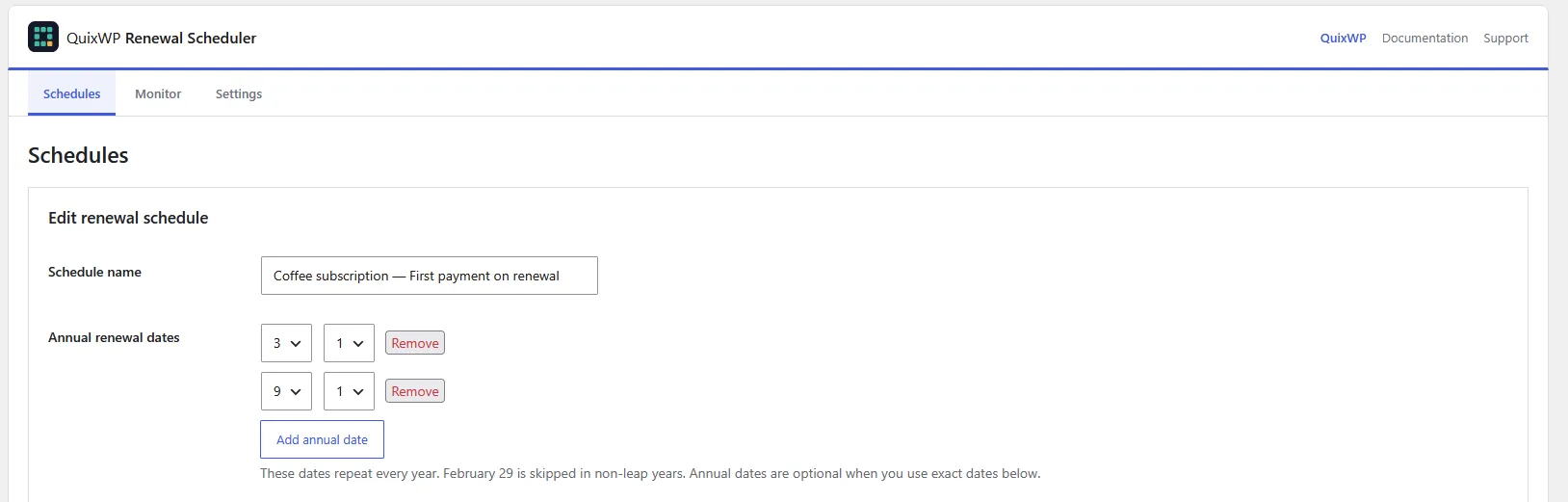
For the following walkthrough, imagine a seasonal box billed on March 1 and September 1. Choose a store-local time deliberately: midnight is the start of the selected day, not the end.
- Open WooCommerce → Renewal Scheduler → Schedules and choose Add schedule.
- Name it “Seasonal box” and enter March 1 and September 1 as annual dates. For fixed quarters, enter all four quarter-start dates instead.
- Set the renewal hour and minute in the WordPress store timezone. Confirm the timezone under Settings → General.
- Choose the signup billing mode described below. Set Processing window to 0 if you want one target time, then save.
2. Decide what customers pay when they join
Renewal Scheduler has two signup modes: charge the recurring amount immediately, or defer it until the next eligible calendar date. A separate WooCommerce Subscriptions sign-up fee can still be due immediately in deferred mode.
For a calendar containing March 1 and September 1, a customer joining on February 28 can pay on February 28 and again on March 1 with immediate billing. With deferred billing, the recurring amount waits until March 1. These examples assume there is no product trial.
QuixWP does not automatically prorate the short first period or skip the next occurrence just because signup was recent. Choose the mode that matches what the customer receives, and explain both the signup charge and next renewal before checkout.
The configured time matters for same-day signups. A signup before today’s target time can use today’s occurrence; at or after it, the next eligible occurrence is used. Trials and individual timing overrides can change the relevant dates, so check those product configurations separately.
3. Assign products and preview the dates
On a Simple subscription product, choose the calendar in Product data → General → Renewal schedule and update the product. For variable subscriptions, use the parent assignment or select a calendar for an individual variation.
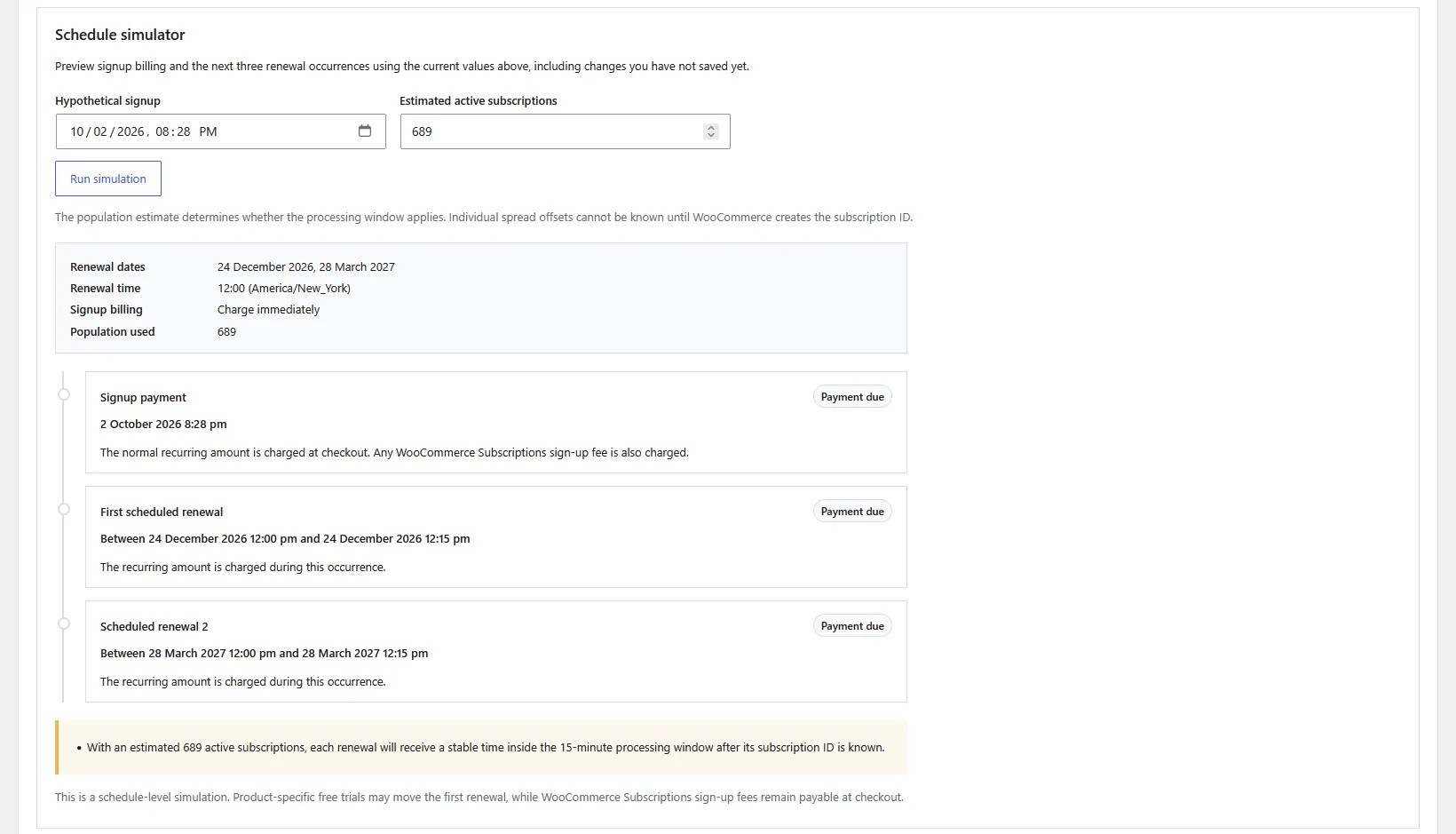
The schedule simulator previews billing and upcoming occurrences without creating an order or charging anyone. Use it to catch a wrong date, timezone or billing-mode choice before testing checkout.
- Open the schedule simulator and try signups before, exactly at and after a renewal time.
- Test dates in different parts of the year. For a quarterly calendar, check that an April signup leads to July rather than an unintended month.
- For an exact-date-only calendar, test near its final date as well.
- Complete a sandbox checkout using the actual product and gateway, then test a successful renewal. Confirm the next saved payment date advances to the intended calendar occurrence.
4. Decide how existing subscribers move across
Assigning a calendar to a product does not silently move existing subscriptions. In the saved QuixWP schedule, use Adopt existing subscriptions from assigned products and review the eligible population.
Preserve each current next-payment date if you want the next charge to stay as agreed. After that renewal succeeds, subsequent payments follow the calendar. Alternatively, choose immediate rescheduling if you deliberately want eligible next-payment dates realigned now.
Back up the store, rehearse the change on protected staging and review representative subscriptions before applying it live. If dates move earlier, account for what customers have already paid for and communicate the changed schedule.
The Shop Plugins importer is a separate path: it transfers supported WooCommerce Subscriptions Schedule data while preserving current next-payment dates. There is no automatic native Billing Date Alignment converter in the current QuixWP version; create the calendar and adopt eligible subscriptions after reviewing that setup. Ensure only one scheduler controls live renewals.
5. Check renewal processing, not just the calendar
A saved renewal time is when a payment becomes due. Actual processing depends on cron, the Action Scheduler queue, hosting capacity and the payment gateway. A processing window spreads target times; it does not promise payment completion within that window.
Use the Renewal Monitor to review upcoming and overdue renewals, calendar alignment, payment-action integrity and the latest renewal result. A preserved adoption date may intentionally differ from the calendar. The Monitor is read-only: investigate the subscription and renewal order before treating a warning as a reason to change dates.
On one live store with approximately 750 subscriptions, renewals previously spanned roughly two days. With QuixWP Renewal Scheduler, all renewals were triggered within roughly two hours. This case-study result describes triggering on that store, not guaranteed processing speed or successful collection from every customer.
WooCommerce Subscriptions and the gateway still handle payment outcomes and any supported retry process. Realigning a date is not a substitute for investigating a failed renewal.
What happens when a finite calendar ends?
After the final successful renewal in an exact-date-only QuixWP calendar, the next-payment date is cleared. The subscription remains active: membership access or course access is not automatically ended.
If billing should continue, add future dates and explicitly realign eligible active subscriptions. New purchases are blocked when an exact-only calendar has no future occurrence. A mixed calendar can continue using its recurring annual dates.
For a term-based programme, decide separately when access ends and who maintains next year’s dates. A correct billing calendar is one part of that workflow.
Frequently asked questions
Do I need an extra plugin for monthly billing on the 1st?
Often no. Try native WooCommerce Subscriptions Billing Date Alignment first. A calendar extension is useful when you need a specific list of dates or additional tools for managing existing subscriptions.
Can I bill on two specific dates every year?
Yes. In Renewal Scheduler, enter both month/day dates as annual entries in one calendar and assign it to the relevant products or variations. Choose signup billing separately.
Does a calendar schedule also control shipping dates?
No. Renewal Scheduler controls eligible renewal dates. Shipping, fulfilment and access rules need their own configuration.
Can I move one subscriber earlier without changing everyone else?
Yes. An assigned active subscription can have a persistent early offset of up to 30 local calendar days. This affects later occurrences too; it is not an arbitrary one-time date change.
Will changing a product schedule automatically reschedule current customers?
No. Use adoption or explicit realignment for eligible existing subscriptions. Review the target dates before applying the change.